
Keep the Photo, Remove Your Ex with AI
By Maria · 2026-10-04
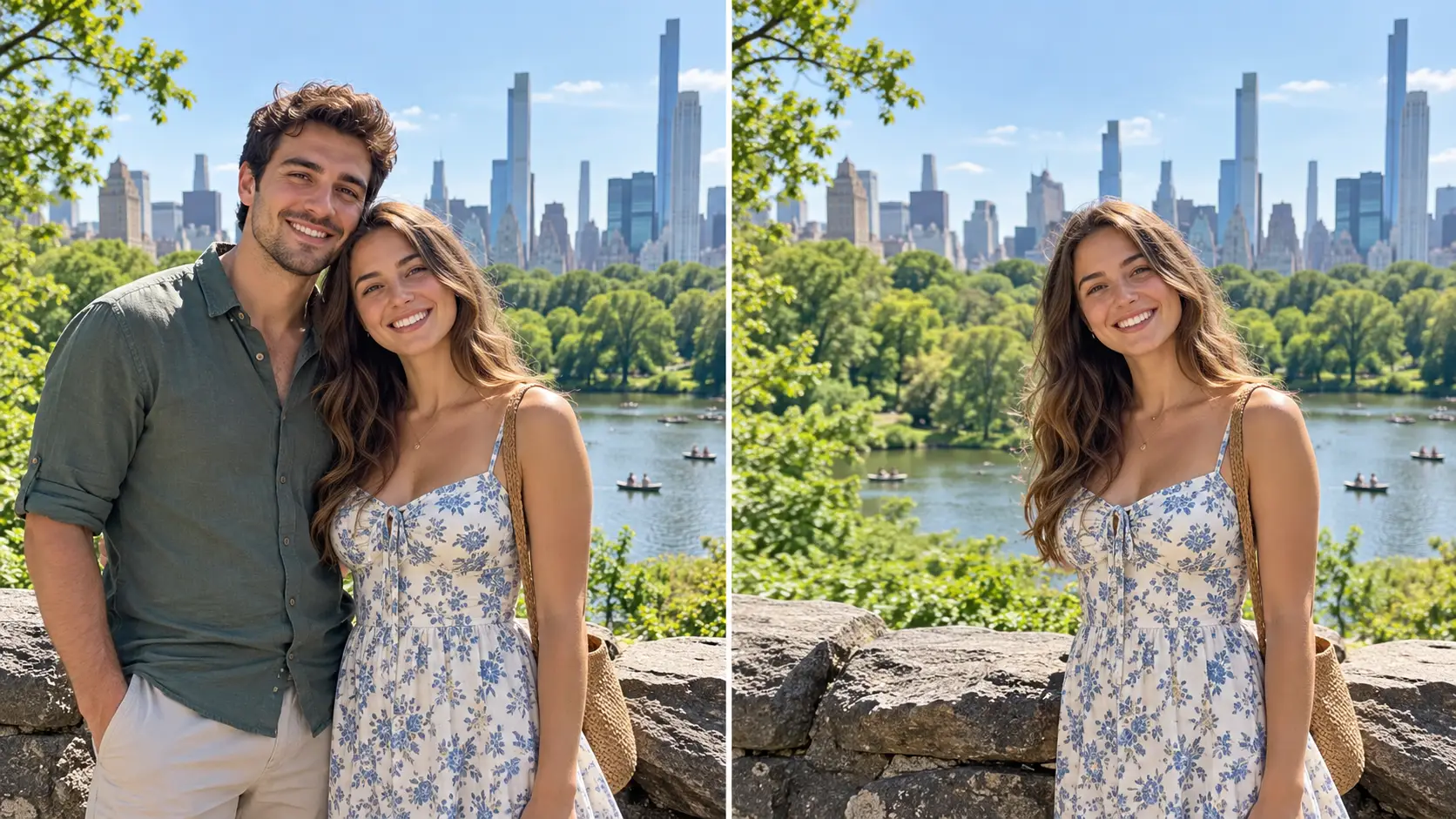
Remove your ex from a photo with AI while keeping the parts you still love. Learn how to erase a person, protect important details, and check the final edit.
You may love the photo but not everyone who is still in it. A graduation picture, holiday memory, or favorite trip photo can still include a former partner you would rather remove without losing the rest of the image.
With selective AI object removal, you can mark the person you want to erase and let the tool fill the empty area based on the surrounding scene. The process is usually straightforward when the person is clearly separated from the background.
If two people overlap, the edit becomes more complex. Parts of clothing, hair, arms, or background that were hidden behind the removed person may need to be generated by AI, so the result should always be checked carefully.
Summary
Removing an ex from a photo does not always mean changing the whole image. First decide what you want to keep, then use selective AI removal only where it is needed.
Crop the photo if the unwanted person is near the edge and nothing important will be lost.
Use AI Object Removal when cropping would remove meaningful parts of the scene.
Mark the full outline of the person you want to erase.
Avoid selecting visible parts of the person or objects you want to keep.
Check overlapping areas carefully because AI may need to generate missing details.
Keep the original file and save the edited result as a separate copy.
Before You Edit, Decide What Makes This Photo Worth Keeping
Before removing anyone, decide which parts of the photo you actually want to preserve. That might be your expression, your outfit, the location, a group of friends, or details in the background that make the image meaningful.
If the person you want to remove is near the edge, a simple crop may be enough. Cropping is often the cleaner option when it removes the unwanted person without cutting away anything important. For example, a 4,000 × 3,000 photo contains 12 million pixels. Cropping it to 3,000 × 3,000 leaves 9 million pixels, or 75% of the original pixel count.
Object removal becomes more useful when cropping would also remove something you want to keep. In that case, selectively removing the person can preserve more of the original composition, although the filled area may still need careful inspection afterward.
How to Remove Your Ex from a Photo with Betatum
Removing someone from a photo works best when you treat it as a selective edit rather than changing the entire image. With Betatum AI Object Removal, you mark the person you want gone, and AI reconstructs the selected area using the surrounding scene.
1. Upload a Copy of the Photo You Want to Keep
Open Betatum AI Object Removal and upload a working copy of your photo. Keep the original file stored separately so you can always return to the unedited version.
Use the clearest version available, especially when the person you want to keep is close to or overlapping the person being removed. More visible information around the selected area gives the AI more context for rebuilding the scene.
Place a screenshot of the actual Betatum Object Removal editor here, showing the uploaded photo before any selection is made.
2. Paint Over the Person You Want to Remove
Paint over the full visible outline of the person you want to erase. Include areas such as their hair, clothing, arms, and legs rather than marking only part of the figure.
Be more precise where the two people are close together. Avoid painting over visible parts of the person you want to keep, since anything included in the selected area may also be reconstructed.
When bodies overlap, some information behind the removed person is not present in the original photo. The AI therefore has to generate a plausible replacement for those hidden areas rather than reveal the exact original scene.
Use an annotated screenshot here to show the complete selected outline and highlight areas where the mask should avoid the person being kept.
3. Process the Selection and Download an Edited Copy
Process the selected area and inspect the result before downloading it. Look closely at the boundary where the person was removed, especially around hands, clothing, hair, shadows, furniture, or patterned backgrounds.
If the reconstructed area looks natural and the parts you wanted to preserve remain intact, download the edited image as a separate copy. Do not replace the original photo, particularly when the AI had to generate details that were hidden behind the removed person.
Keep the Photo You Came For
The goal is not simply to remove someone. It is to keep the version of the photo that still feels worth saving.
Choose the edit that best preserves your expression, outfit, the setting, and any other details that make the image meaningful to you. If the edited version changes too much, keep the original or try a different selection.
Try AI Object Removal on one photo and see whether you can keep the memory without keeping everyone in the frame.