How to Remove People from Photos Without Photoshop
By Maria · 2026-07-29
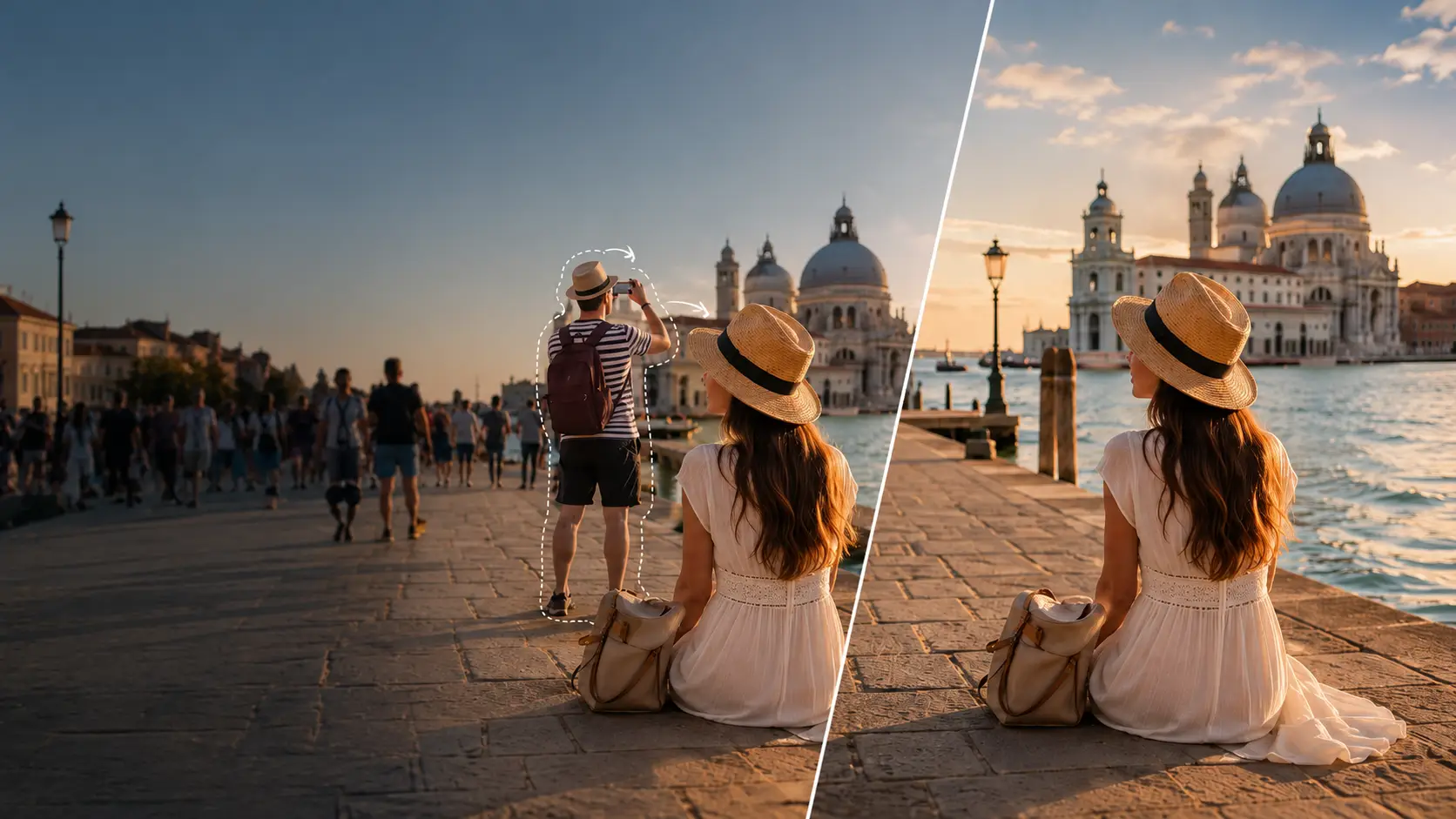
Remove unwanted people from photos without Photoshop. Compare AI tools, iPhone and Android methods, cropping, blurring, and tips for natural results.
You finally got the perfect shot؛the Eiffel Tower glowing at golden hour, your family laughing on the beach, or that quiet café corner you waited twenty minutes to capture. Then you zoom in and spot a stranger walking through the frame, a tourist frozen mid-selfie in the background, or a random passerby who had no idea they were about to ruin your memory. The good news? You don’t need Photoshop, expensive desktop software, or any knowledge of layers and masks to fix it. So how can you remove someone from a photo without leaving behind an obvious blur, broken background, or artificial-looking patch?
In this guide, you’ll learn exactly how to do that step by step. We’ll cover online AI object removal tools, Betatum AI Object Removal, built-in methods on iPhone and Android, cropping and blurring tricks, manual healing tools, and a few tips to keep your final image looking completely natural.
Summary
This guide walks you through removing unwanted people from your photos — no Photoshop needed. Whether it’s a stranger walking into your travel shot or an ex you’d rather forget, you’ll find a method that works. You’ll learn how to use Object Removal AI for clean, automated results, tap into built-in tools like Clean Up on iPhone and Magic Eraser on Android, and explore the best online AI removers when you need a quick fix. We also cover when cropping or blurring is actually the smarter choice — plus practical tips to make every edit look like it was never touched.
What Is the Easiest Way to Remove Someone From a Photo?
The easiest way to remove someone from a photo is with an online AI object remover. You brush or select the person, and the AI fills in the background behind them automatically؛ no manual cloning or layer work needed.
That said, the best method depends on the situation:
Use an AI people remover when the unwanted person is in the background and doesn’t overlap your main subject.
Crop the photo when the person is near an edge and cutting them out won’t hurt the composition.
Apply a blur when you just need to hide someone’s face for privacy and visual quality is secondary.
Use healing or cloning tools when the area behind the person has repeating textures or straight lines that AI might misread.
Choose a different shot entirely when the person fully blocks your main subject — no tool can reconstruct what was never captured.
Can the Person Be Removed Cleanly?
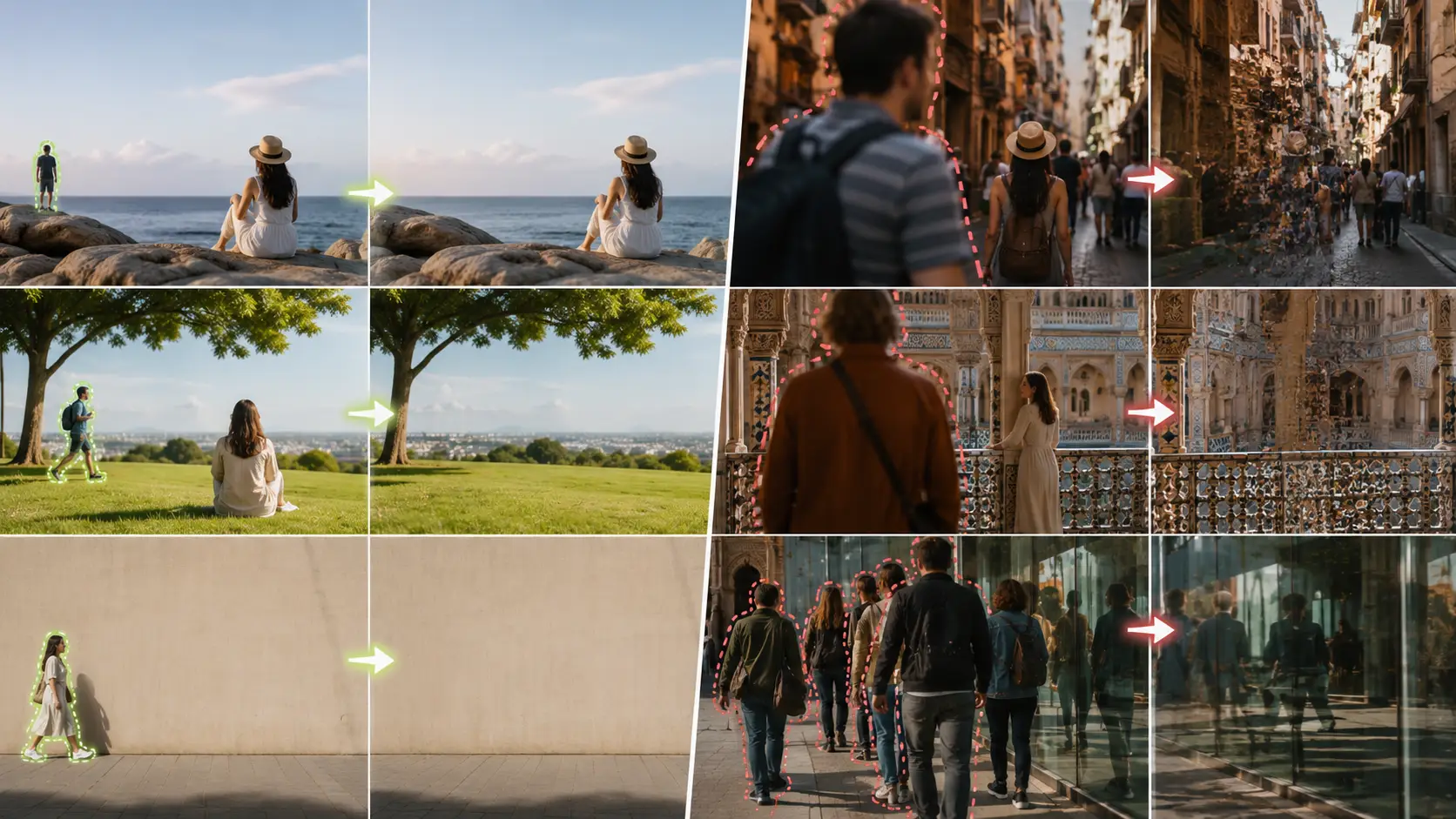
Not every photo is equally easy to edit. The result depends on what’s hiding behind the person you want to remove.
AI needs enough visible background information to estimate what should appear in that space. The more context it has, the more natural the result looks.
Photos That Are Usually Easier to Fix
When the person is small, distant, or standing in front of a simple background, AI has enough visual data to fill the gap convincingly. These are the cases where an AI people remover tends to work with minimal touch-up needed.
The person is small or far from the camera
The person stands against a plain wall, sky, grass, sand, or blurred background
The person does not touch the main subject
The unwanted person appears close to an image edge
Similar background textures are visible nearby
There are no strong shadows or reflections
The original image has good resolution
Photos That Are More Difficult to Fix
When the person overlaps your subject or stands in front of a complex background, the AI has less to work with. Results in these cases may need manual corrections or a second pass with a different tool.
The person overlaps the main subject
A large person covers most of the background
The background contains railings, tiles, text, windows, or detailed architecture
Several people overlap one another
The person casts a long or complex shadow
Their reflection appears in glass, water, mirrors, or polished surfaces
Important body parts belonging to another person are hidden behind them
The image is blurry, compressed, or very small
Research on object removal shows that shadows, reflections, occlusions, and other visual effects caused by an object can be harder to reconstruct than the object itself.
How to Remove a Person With Betatum AI Object Removal
Betatum’s AI object removal tool makes it easy to erase unwanted people from any photo — no editing skills needed. Just follow these steps to get a clean, natural-looking result in minutes.
Go to the Betatum website and open the Object Removal tool.
Upload the photo that contains the person you want to remove.
Wait for the image to load fully in the editor.
Use the brush tool to paint over the person you want to erase.
Adjust the brush size to cover the entire subject, including shadows and edges.
Click the “Remove” button and let the AI process the image.
Preview the result, then download your edited photo.
How to Remove People From iPhone Photos
Compatible Apple devices include a Clean Up option in the Photos app, powered by Apple Intelligence. This feature can erase distracting people from your shots directly on your iPhone. Availability depends on the device, software version, language, and region.
Clean Up in the iPhone Photos App
Open the photo in the Photos app.
Tap Edit.
Select Clean Up.
Tap, circle, or brush over the distracting person.
Review the reconstructed area.
Repeat on smaller leftover details.
Save the edited photo.
Apple specifically describes Clean Up as a way to remove distracting background objects. It works best for background distractions rather than people who cover important subjects in the frame.
What If Clean Up Is Not Available?
If your device doesn’t support Clean Up, or the feature isn’t available in your region yet, you still have a few solid options to get the job done.
Open AI Object Removal in the iPhone browser.
Crop the image when the person is near an edge.
Use Markup, blur, or a solid covering when privacy is the main goal.
Use a trusted editing application with healing or object-removal features.
Choose another image.
How to Remove People From Photos on Android
Some Android users can access Magic Eraser or other built-in editing options through Google Photos. Availability and requirements may differ by device, so check whether your phone supports these features before getting started.
Magic Eraser in Google Photos
Open the image in Google Photos.
Tap Edit.
Open Actions.
Select Magic Eraser.
Tap a suggested person or brush over the unwanted area.
Use Camouflage when reducing the distraction works better than removing it.
Review the result and tap Done.
Google’s current guidance notes that compatible devices generally need Android 8.0 or later and at least 3 GB of RAM, although specific features may still vary by device.
An Online Tool May Be Easier
If Magic Eraser is not available on your device, or the result leaves visible artifacts, an AI-powered online tool gives you more control. Open Betatum AI Object Removal in your Android browser, upload the photo, paint over the person, and download the clean result — no app installation needed.
How to Remove People From Photos Online Without Photoshop
Most online AI object removers follow the same basic workflow, and once you understand it, you can use almost any tool with confidence. You upload your photo, mark the person you want gone, and let the AI reconstruct what should be behind them — all without installing any software.
Here is how the process typically works:
Upload your image to the tool.
Use the brush to paint over the person you want to remove.
Submit the selection and let the AI process it.
Inspect the reconstructed background for any artifacts or gaps.
If the result is not clean, adjust your selection and run it again.
Download the final image once you are satisfied.
What to Check Before Uploading Your Photo
Not all online tools work the same way. Before you upload, run through this quick checklist to avoid surprises:
Does the tool support your image format (JPG, PNG, HEIC, etc.)?
Is the export resolution capped or reduced on the free plan?
Will the tool add a watermark to your downloaded image?
Do you need to create an account before you can use it?
How does the service store or use photos you upload?
Can you resize or reposition the selected area after drawing it?
Can you undo and redo the edit without re-uploading the image?
Does the tool preserve the original image dimensions in the output?
How to Make the Edited Photo Look Natural
Getting a clean removal is only half the job. These steps help you catch the issues that make an edit obvious.
Start with the original high-resolution file. Screenshots and messaging-app copies contain less detail and may produce softer results.
Remove one person at a time. Smaller selections give the AI a more controlled area to reconstruct.
Use a brush slightly larger than the person. Include hair, clothing edges, shoes, and small gaps without selecting excessive background.
Remove shadows and reflections separately. A missing person with a remaining shadow or reflection immediately reveals the edit.
Protect straight lines. Inspect doors, windows, tiles, railings, horizons, walls, and building edges.
Watch for repeated textures. Grass, bricks, sand, clouds, water, and floor tiles may become duplicated or smudged.
Check other people’s hands and limbs. Make sure fingers, arms, hair, or clothing belonging to another person were not removed accidentally.
Look for repeated objects. AI may duplicate a chair, window, tree, light, or paving stone when rebuilding the background.
Inspect the result at 100% zoom. Look for warped objects, soft patches, sudden texture changes, and unnatural transitions.
Check the image at normal viewing size. Minor imperfections may disappear at normal size, while larger composition problems become easier to notice.
Compare the edit with the original. Switching between both versions helps reveal missing lines, altered colors, and unexpected changes.
Avoid excessive sharpening or enhancement. Sharpening cannot repair an incorrectly reconstructed background and may make artifacts more noticeable.
Common Mistakes That Make Person Removal Look Fake
Even the best AI tools can produce obvious results when used incorrectly. These are the most common mistakes to avoid.
Selecting only the center of the person: Hair, hands, or clothing may remain visible. Cover the person’s complete outline.
Removing a large crowd in one pass: The reconstructed background may become distorted. Remove people in smaller groups or one at a time.
Ignoring the person’s shadow: A noticeable ghost shadow may remain. Select and remove the shadow in a separate pass.
Using a very large brush: Important background details may disappear. Zoom in and use a smaller, more controlled selection.
Accepting the first result: Obvious AI artifacts or warped textures may remain. Generate another result or correct the affected areas separately.
Editing a compressed screenshot: Fine details may appear blurry or pixelated. Use the original, highest-quality version of the photo.
Selecting parts of the main subject: The AI may regenerate or distort the subject’s face, body, hair, or clothing. Protect the subject and use smaller masks.
Repeatedly saving the image as a JPEG: The photo may gradually lose quality. Keep a high-quality master copy and avoid repeated compression.
Upscaling before removing the person: The unwanted person and existing artifacts become larger and harder to correct. Remove the person first, then upscale the finished image if necessary.
Using blur only to improve appearance: The blurred person may attract even more attention. Use blurring mainly when protecting someone’s identity or privacy.
Should You Remove, Crop or Blur the Person?
Not every unwanted person needs the same fix. The right choice depends on where the person is, how much detail surrounds them, and what matters more: the background or someone’s privacy.
Situation | Best First Choice | Why |
|---|---|---|
Small person in a simple background | AI removal | Enough surrounding information is available |
Person at the far edge | Crop | Faster and usually more realistic |
Face must be hidden for privacy | Blur or solid covering | Identity protection matters more than background reconstruction |
Person overlaps the subject | Another photo or careful manual edit | AI may damage the main subject |
Person covers detailed architecture | Clone/healing plus AI | Lines and patterns require more control |
Large crowd covers the landmark | Another photo or multi-image method | Too much background is hidden |
Small leftover mark after AI removal | Healing tool | Faster than regenerating the entire area |
Background is no longer important | Background removal | Replacing the full background may be easier |
The best edit is not necessarily the one that removes the most pixels. It is the one that preserves the main subject and still looks believable.
Final Thoughts
AI tools have made removing a person from a photo without Photoshop genuinely accessible to anyone. You do not need design experience or expensive software to get a clean result. That said, the quality of the output still depends on the choices you make before and after the edit.
Simple backgrounds, good lighting, and subjects that do not overlap the person you want to remove will almost always produce better results. When the background is complex or the person is tightly connected to the main subject, cropping or blurring may actually give you a more natural-looking photo than any AI removal tool. Shadows, reflections, and overlapping edges need extra attention, and zooming in to inspect the final result at full size is always worth the extra minute.
Ready to clean up your photo? Use Betatum AI Object Removal to mark unwanted people, erase background distractions and create a cleaner version without learning complicated editing software.