
Remove Background From a Logo for a Transparent PNG
By Maria · 2026-11-19
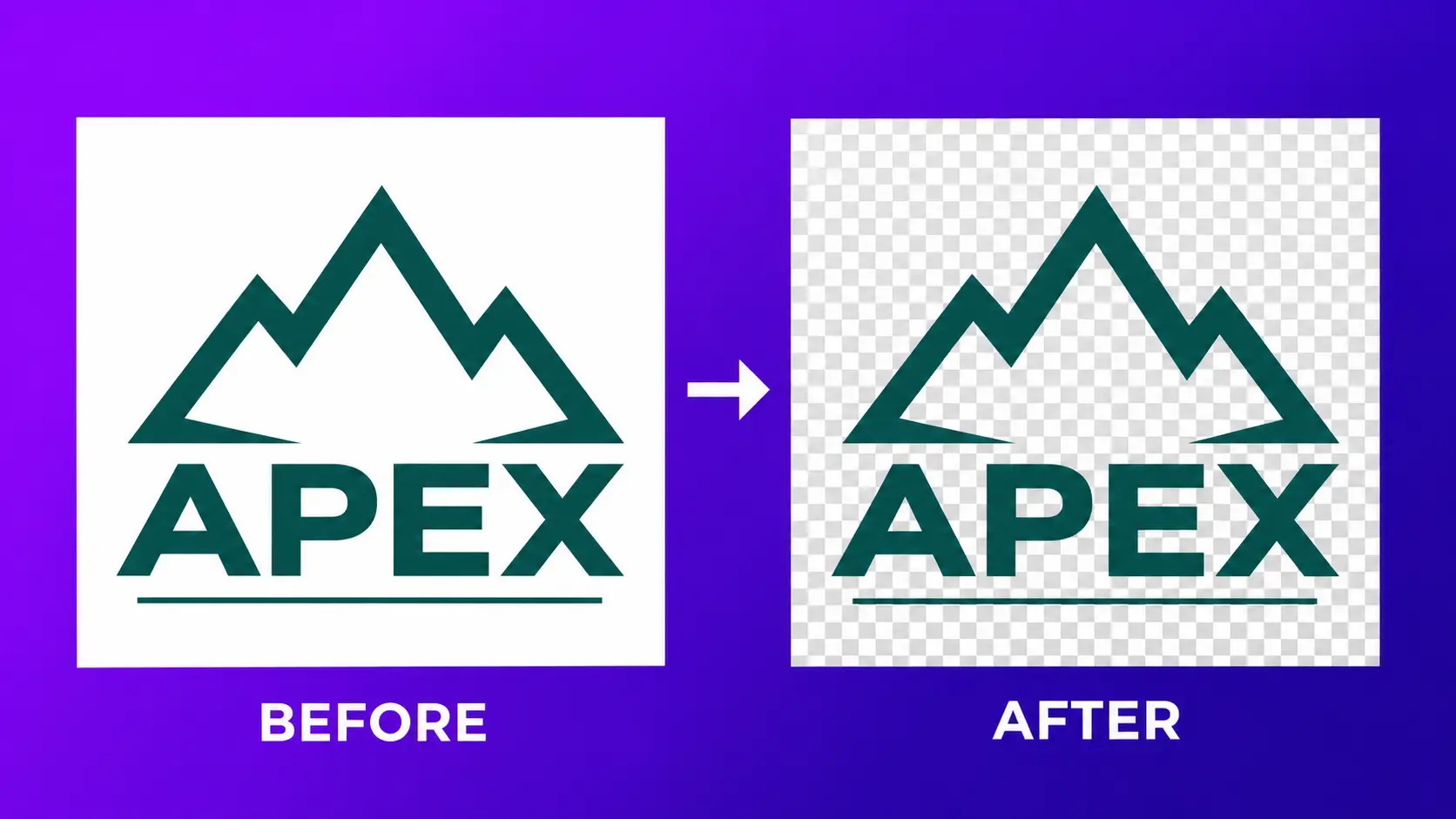
Remove background from a logo without Photoshop. Get rid of unwanted white boxes, preserve fine details, and save a transparent PNG with Betatum
Your logo looks fine on a white background, but when you place it on a colored banner or website header, an unwanted white rectangle appears around it. To fix this, you need to remove the background from your logo and save it as a transparent PNG. This guide explains how to remove background from a logo, preserve important details like text and fine lines, and save a clean, transparent logo that works across different designs.
Summary
Removing a logo background lets you use your design on websites, banners, and presentations without an unwanted white box. Here's what you'll learn:
How to remove background from a logo using Betatum AI Background Removal.
How to preserve text, fine lines, and important logo details.
How to save your logo as a transparent PNG and test it on different backgrounds.
How to Remove a Logo Background With Betatum
You can remove a white background from a logo using AI Background Removal tool without manually tracing its edges. Follow these five steps to create a transparent logo while keeping its text, shapes, and fine details intact.
Step 1: Upload Your Logo
Open Betatum’s AI Background Removal tool and upload the logo you want to edit. Choose the highest-quality version available, preferably one with sharp text, clear edges, and enough space around the design. A blurry or low-resolution image may make it harder to preserve small details during background removal.
Step 2: Remove the Background Automatically
Once your logo is uploaded, Betatum uses AI to identify the design and separate it from the surrounding background. This helps remove the unwanted white or solid-colored area without manually selecting every letter or shape. Review the result to make sure the logo itself remains unchanged.
Step 3: Check the Text, Fine Lines, and Inner Spaces
Before downloading, zoom in and inspect the logo carefully. Check that thin lettering, small symbols, and sharp edges are still visible. Pay attention to the spaces inside letters such as A, O, and P, where unwanted background pixels may remain. Also, make sure any white elements that belong to the original design have not disappeared. If details are missing, try a clearer source image or refine the result before exporting.
Step 4: Download the Transparent PNG
Once the logo looks correct, download it as a transparent PNG. Unlike JPEG, PNG supports transparency, allowing you to place the logo over different backgrounds without a visible rectangular box. Keep the original file as well, so you can make adjustments later without starting from a previously edited version.
Step 5: Test the Downloaded Logo on Different Backgrounds
Place the downloaded PNG on both light and dark backgrounds to confirm that the transparency works correctly. Look for white outlines, leftover background pixels, or missing parts of the logo. Then test it at the size you plan to use on your website, business card, or social media graphics. A clean transparent logo should blend into each background without losing its original details.
Use Your Transparent Logo Without Changing Its Appearance
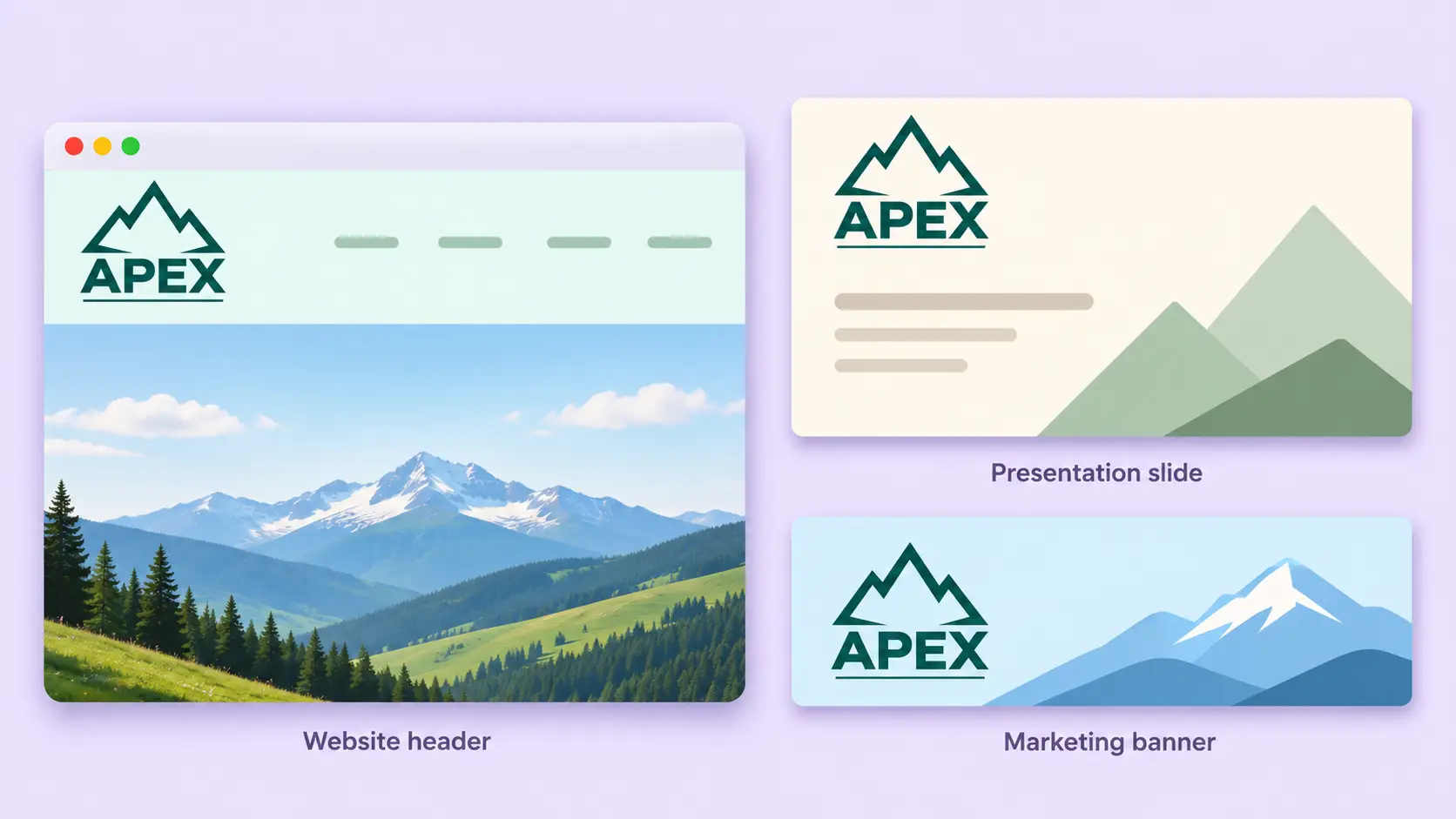
Once you remove the background from your logo, you can place the transparent PNG on a website header, presentation slide, or marketing banner without a visible white box.
For example, when adding your logo to a website header, keep its original proportions, colors, and spacing. Resize it proportionally to fit the available space without stretching, cropping, or distorting the design.
Always check that the logo remains readable against its new background. If the contrast is too low, use an approved light or dark version of the logo instead of changing its colors arbitrarily.
Removing the background should make your logo more versatile, not change its original appearance.
Conclusion
Removing a logo background makes it easier to use your design across websites, presentations, and marketing materials. Simply upload your logo, remove the unwanted background, and check that the lettering, edges, and small details remain intact before downloading the transparent PNG. Test the saved file on a different background to catch any remaining issues. Ready to make your logo background transparent? Try Betatum AI Background Removal to get started.