
How to Make Old Camera Photos Look Better with AI
By Maria · 2026-09-30
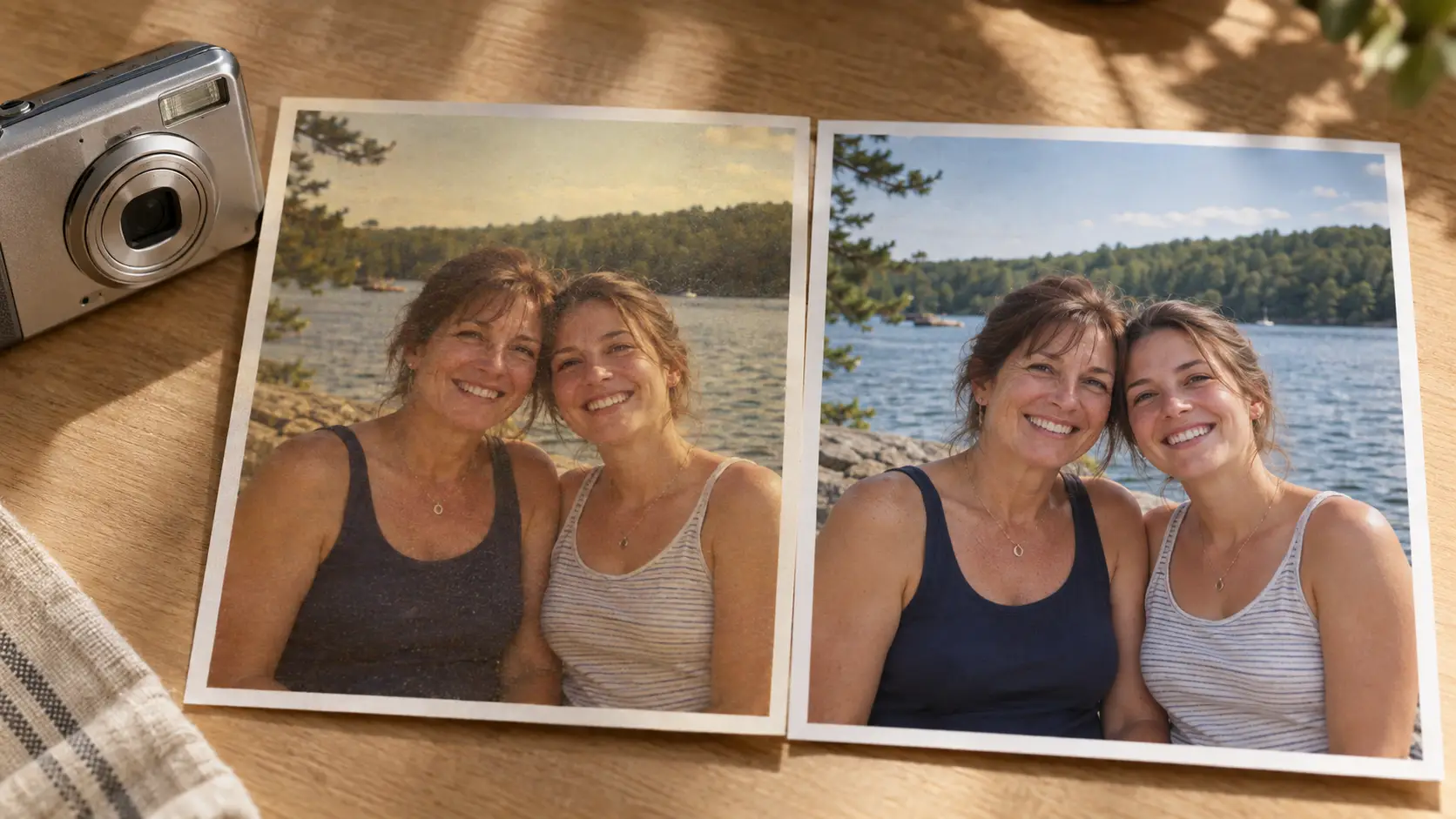
Improve old digital camera photos with AI. Learn how to enhance unclear faces, upscale small images, colorize black-and-white photos, and compare results
You find an old photo on a memory card, an external drive, or a forgotten backup folder. The picture still matters to you, but the face looks unclear, the image is too small, or you want to see a black-and-white photo in color.
The first step is to decide what actually needs to change. A blurry or noisy photo may need enhancement, a small image may need upscaling, and a black-and-white photo may need colorization. Choose an AI tool that matches that specific task rather than applying every adjustment at once.
Always work on a copy of the original file. After processing it, compare the edited version with the source and check whether important details still look natural. This guide focuses specifically on existing digital-camera files, not scanned prints or damaged physical photographs.
Summary
Old digital-camera photos do not all need the same type of enhancement. Start with the best file you still have, identify the change you want, and use the AI tool that matches that goal.
Use AI Face Enhance when facial details look unclear.
Use AI Photo Upscaler when the image is too small for your intended use.
Use AI Colorizer only if you want a color version of a black-and-white photo.
Keep the original file unchanged and process a separate copy.
Compare the result with the original before downloading, sharing, or printing it.
Start with the Best Camera File You Still Have
Before enhancing an old digital photo, look for the closest version you have to the original camera file. A screenshot, a photo downloaded from social media, or an image that has been shared and saved several times may contain less detail because it has been resized or recompressed.
Check the image's pixel dimensions and, when available, its camera metadata. Information such as the camera model, capture date, and original dimensions can help you identify which copy is closest to the source. Do not choose a file based on file size alone. A larger file is not automatically a better or more original image.
Keep the original file unchanged and create a separate copy for editing. This gives you a clean reference if an AI enhancement introduces unwanted changes.
An intact digital image also does not fade simply because the file is old. Fading, scratches, stains, and physical damage are mainly concerns with printed photographs or damaged scans. If your only copy is a scratched or faded paper photo, use the photo restoration guide instead.
Choose the AI Tool That Matches What You Want to Change
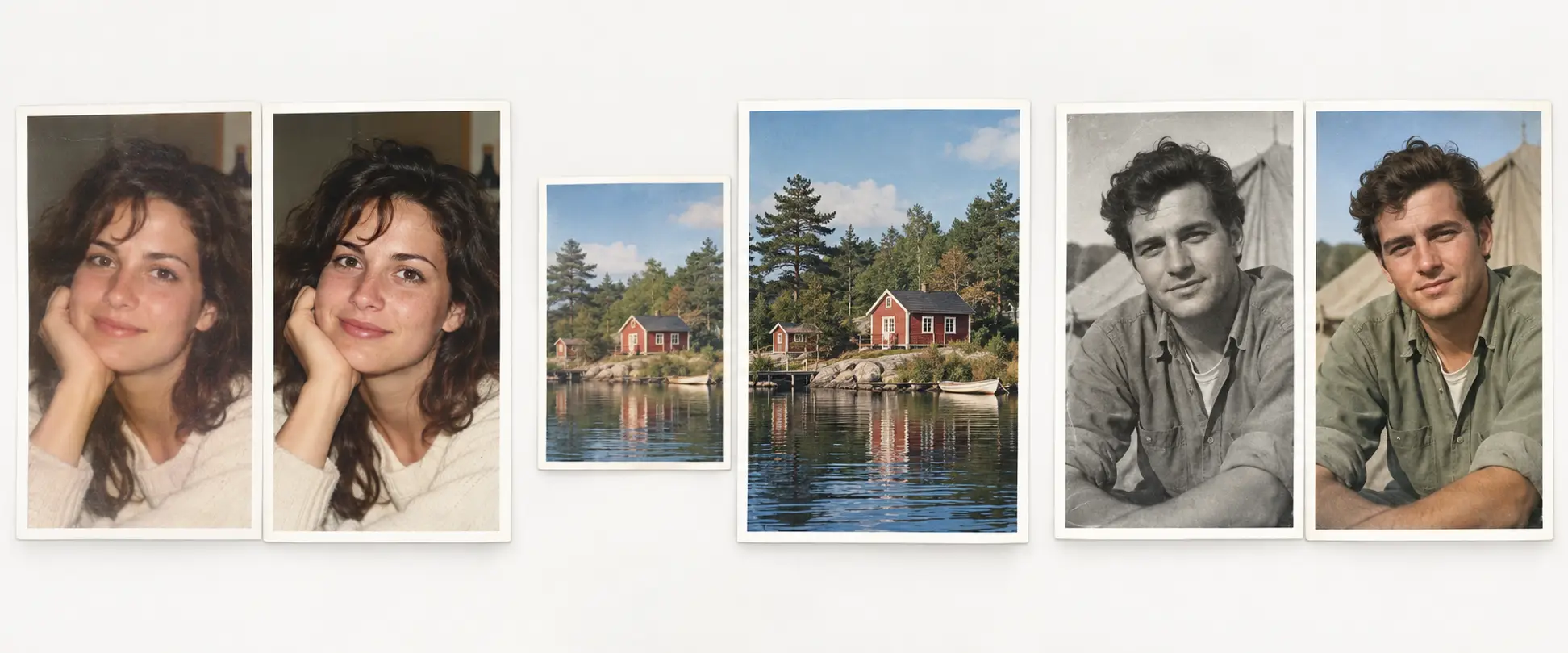
You do not need to run every old camera photo through the same editing process. Start by identifying the specific change you want to make, then choose the tool designed for that task.
Your goal | Relevant tool | What it does |
|---|---|---|
Improve an unclear face | AI Face Enhance | Refines facial appearance when a face looks soft, unclear, or lacks visible detail |
Make a small image larger | AI Photo Upscaler | Increases image dimensions and can improve how a low-resolution photo looks at a larger size |
Create a color version | AI Colorizer | Adds plausible color to a black-and-white image |
These are alternative editing routes, not three required stages. If the face already looks clear, there is no reason to use Face Enhance. If the image is already large enough, you may not need to upscale it.
Colorization is also optional. A black-and-white photo is not defective simply because it has no color. Use Colorizer AI only when you want to create a color interpretation of the image.
Each tool also has a specific role. AI Colorizer is not a white-balance correction tool, AI Face Enhance should not be treated as a universal solution for blur across the entire image, and AI Photo Upscaler cannot guarantee that every image-quality problem will be fixed simply by increasing resolution.
How to Improve Old Camera Photos with Betatum AI
Once you know what you want to improve, the editing process is straightforward. Choose the Betatum tool that matches your photo, upload the file, process it, and inspect the result before saving it.
The steps below apply whether you are improving facial detail, enlarging a small image, or creating a color version of a black-and-white photo.
1. Open Your Chosen Tool and Upload the Photo
Open the Betatum tool that matches the change you want to make: AI Face Enhance, Photo Upscaler AI , or AI Colorizer. Upload the best available copy of your old digital-camera photo.
Use a file format accepted by the uploader. If Betatum rejects the image, check the upload requirements shown on the tool before converting or replacing the file.
Betatum’s current tool pages confirm the same basic workflow for all three options: upload the image, let the selected AI process it, and download the result.
2. Run the Enhancement That Fits Your Photo
For Face Enhance, submit a portrait when the face looks unclear or lacks visible facial detail. The tool is designed specifically to improve facial detail and clarity rather than act as a general deblurring tool for every part of the image.
For Photo Upscaler, choose an enlargement level that fits how you plan to use the image, then process it. Betatum currently supports enlargement up to 8×. Increasing the dimensions gives you more output pixels, but that should not be confused with a measured increase in photographic quality. A 3000 × 2000 image contains 6 million pixels. Doubling both dimensions produces 6000 × 4000, or 24 million pixels—four times the pixel count, not four times the image quality.
For Colorizer, submit a black-and-white photo when you want to create a color version. The AI predicts plausible colors for the image; it does not recover hidden original color information from the monochrome file.
3. Compare the Result Before You Keep It
Do not judge an AI-enhanced photo only from a small preview. Open the original and processed versions at the display size you actually expect to use, and compare the same areas of the image.
For portraits, inspect the eyes, mouth, hairline, and other facial features for unnatural changes. After upscaling, look closely at edges, textures, and any lettering in the frame. For colorized photos, check boundaries around skin, clothing, hair, and objects where predicted colors may spill into neighboring areas.
Image restoration research gives an important reason to make this comparison. Yochai Blau and Tomer Michaeli write:
“distortion and perceptual quality are at odds with each other.”
Their CVPR 2018 paper distinguishes reconstruction accuracy from perceptual quality and mathematically demonstrates a tradeoff between the two within its framework. In practical terms, an output can appear more visually convincing without necessarily being a more accurate reconstruction of the unknown original scene. The study evaluated image-restoration methods generally; it did not test Betatum.
If important details no longer look acceptable, keep the original rather than treating the AI version as automatically better.
4. Download a Separate Copy for Sharing or Printing
Download the version you want to keep as a separate file instead of overwriting the original photo. After downloading it, check the actual pixel dimensions of the delivered image rather than assuming the preview represents the final resolution.
If you plan to print the photo, compare those dimensions with the print provider’s requirements. For example, a 3000-pixel-wide image printed at 300 pixels per inch would be 10 inches wide because 3000 ÷ 300 = 10. The appropriate resolution can vary by printer, viewing distance, paper, and production method, so use the specifications supplied by the service that will produce the final print.
Conclusion
Improving an old camera photo starts with identifying what actually needs to change. A portrait may benefit from clearer facial details, a small image may need larger dimensions, and a black-and-white photo may only need colorization if you want to see a color version.
Whatever route you choose, compare the processed image with the original before keeping it. Check whether important details still look natural, and always keep the original file unchanged as your reference.
AI can help make an old digital photo more useful or visually appealing, but it should not be treated as a guarantee of perfect restoration or exact recovery of details that were never captured.
Try Betatum AI that matches your photo on a single image first, then decide whether the result is worth keeping.