
How to Make a Sticker with a Transparent Background
By Maria · 2026-11-25
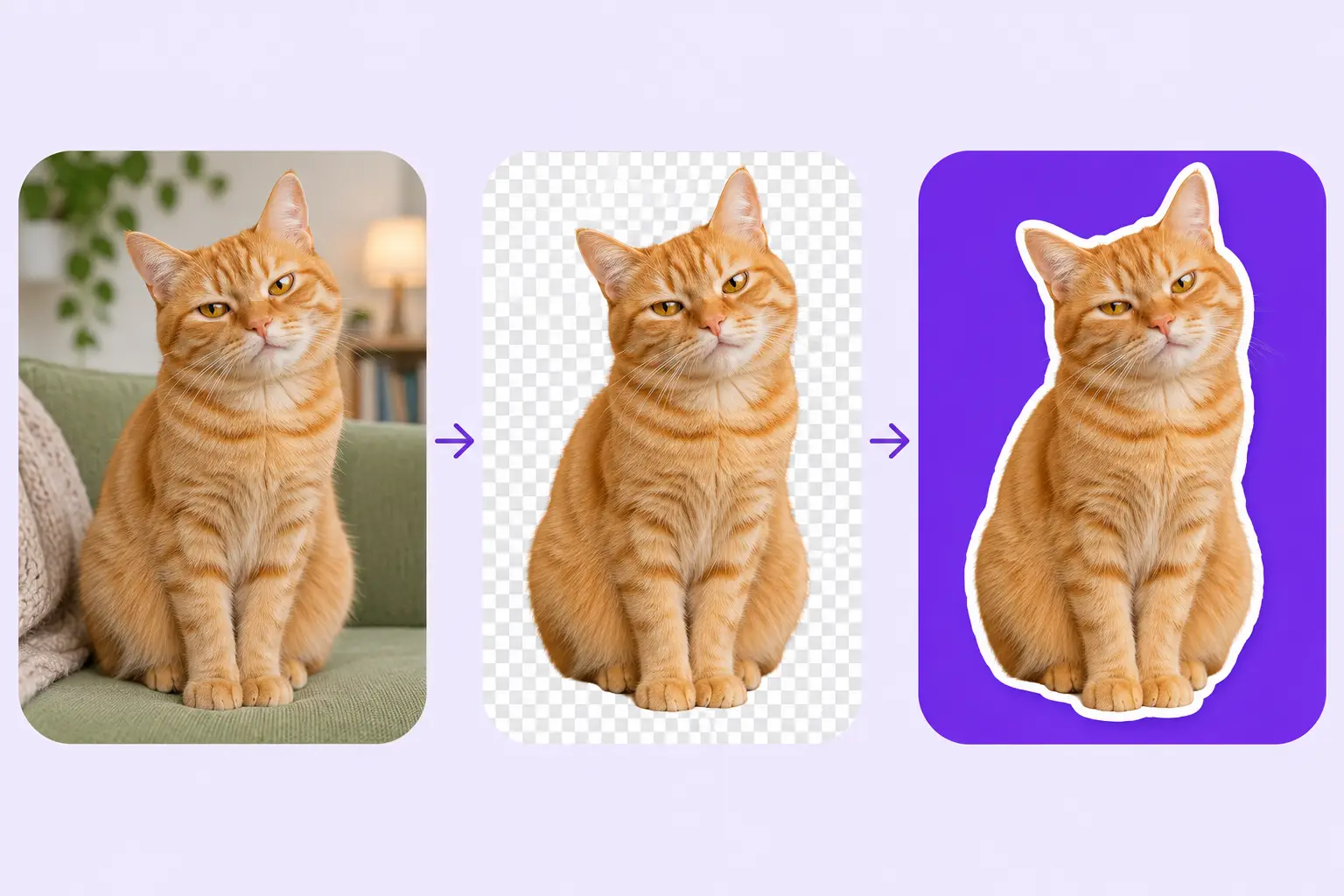
Turn your favorite photos into transparent PNG stickers. Remove the background with Betatum, add custom borders, and share on WhatsApp or Telegram
You can turn a photo of yourself, your pet, or any object into a custom sticker with a transparent background. Simply choose a photo, remove its background, add a border or text if desired, and save it as a transparent PNG. This guide shows you how to make a sticker with a transparent background, achieve clean edges, and prepare your finished sticker for use on WhatsApp or Telegram.
Summary
A transparent background allows a photo sticker to blend seamlessly into different chat backgrounds. The quality of the final sticker depends on clean edges, preserved details, and the correct file format.
Clear photos with expressive subjects work best at small sticker sizes.
PNG preserves transparency, while an optional white outline improves visibility.
WhatsApp and Telegram offer built-in tools for creating and sharing custom stickers.
How to Make a Sticker From a Photo
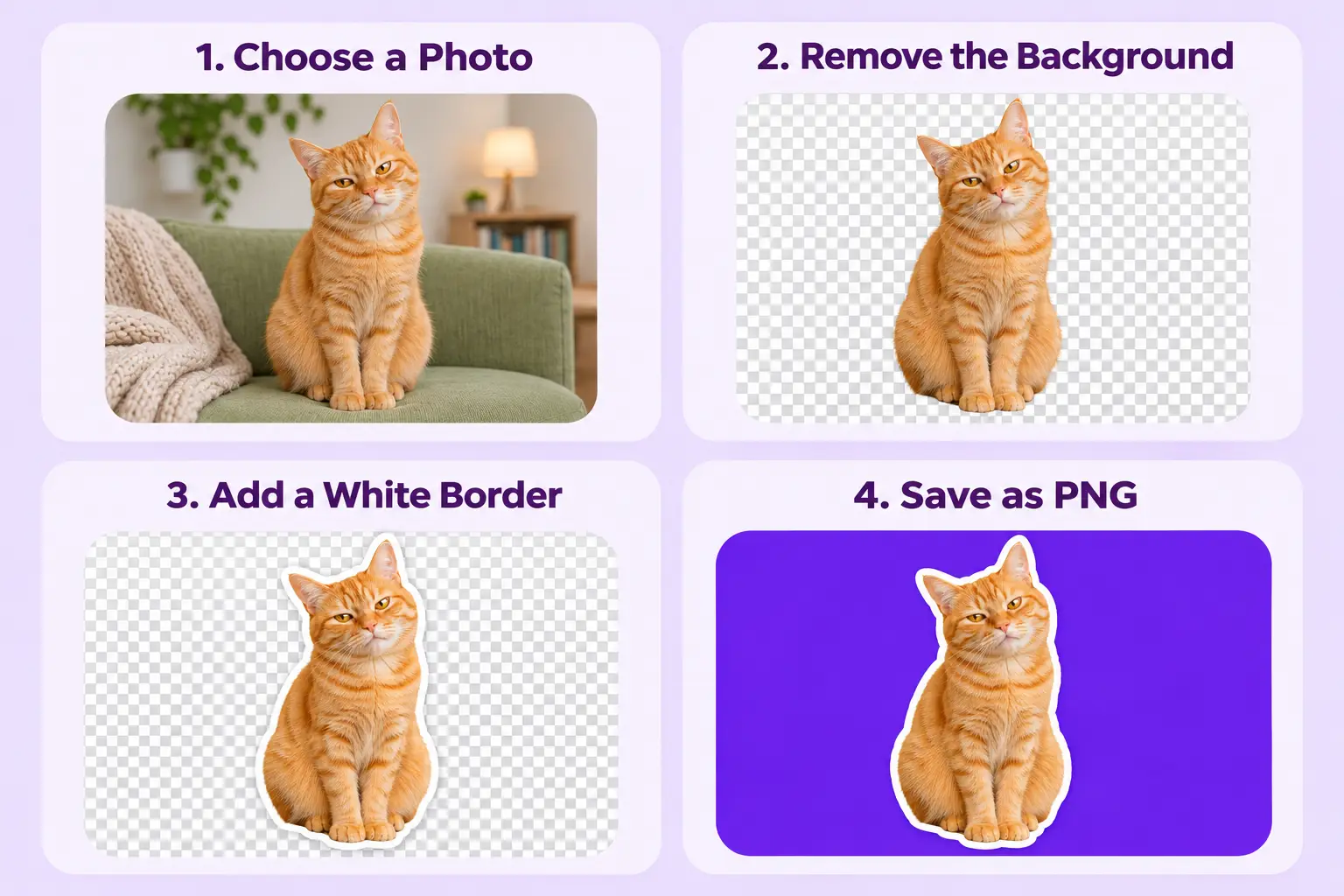
Turning a photo into a sticker starts with isolating the subject from its background. Follow these four steps to create a custom photo sticker, personalize its appearance, and save it with transparency. We'll use a photo of a cat throughout this tutorial to demonstrate each stage of the transformation.
Step 1: Choose a Photo for Your Sticker
Select a clear photo with a recognizable subject. Expressive faces, distinctive gestures, and simple poses work particularly well because they remain easy to recognize when displayed at a small size.
Make sure important details, such as a pet's ears, a person's hands, or an object's edges, are not cut off by the frame. Choose a photo with enough space around the subject, especially if you plan to add an outline later.
Step 2: Remove the Background With Betatum
Open AI Background Remover and upload your chosen photo. The AI automatically separates the main subject from its surroundings, creating a cutout with a transparent background.
Before downloading the result, inspect the image for missing details or unwanted background pixels. Pay particular attention to fur, hair, and small spaces between parts of the subject.
Once you are satisfied with the result, download the transparent PNG. You can use this cutout as a simple sticker or customize it in the next step.
Step 3: Add a Border or Short Text — Optional
A transparent cutout is already a usable sticker, but adding a white border can help it stand out against different backgrounds. A short caption can also turn an expressive photo into a reaction sticker.
Here's how to add a white border to a sticker using Photopea, a separate online image editor:
Open your transparent PNG using File → Open.
Double-click the image layer in the Layers panel to access Layer Styles.
Enable Stroke, select white as the color, and set its position to Outside.
Adjust the border thickness until it complements the subject without hiding important details.
Optionally, use the Type Tool (T) to add a short caption, such as "Not Today."
Keep the canvas transparent and leave enough space around the design so the border and text are not clipped.
Step 4: Save Your Sticker With a Transparent Background
If you skipped the optional customization step, the PNG downloaded from Betatum is ready to use. If you edited your sticker in Photopea, go to File → Export As → PNG and save the finished design.
Avoid saving your sticker as a JPG or taking a screenshot of the preview, as neither method preserves the intended transparency.
To confirm that your transparent PNG sticker is ready, place the saved file over a colored background. The new background should remain visible around the design without any unwanted rectangular box.
How to Add Your Sticker to WhatsApp or Telegram
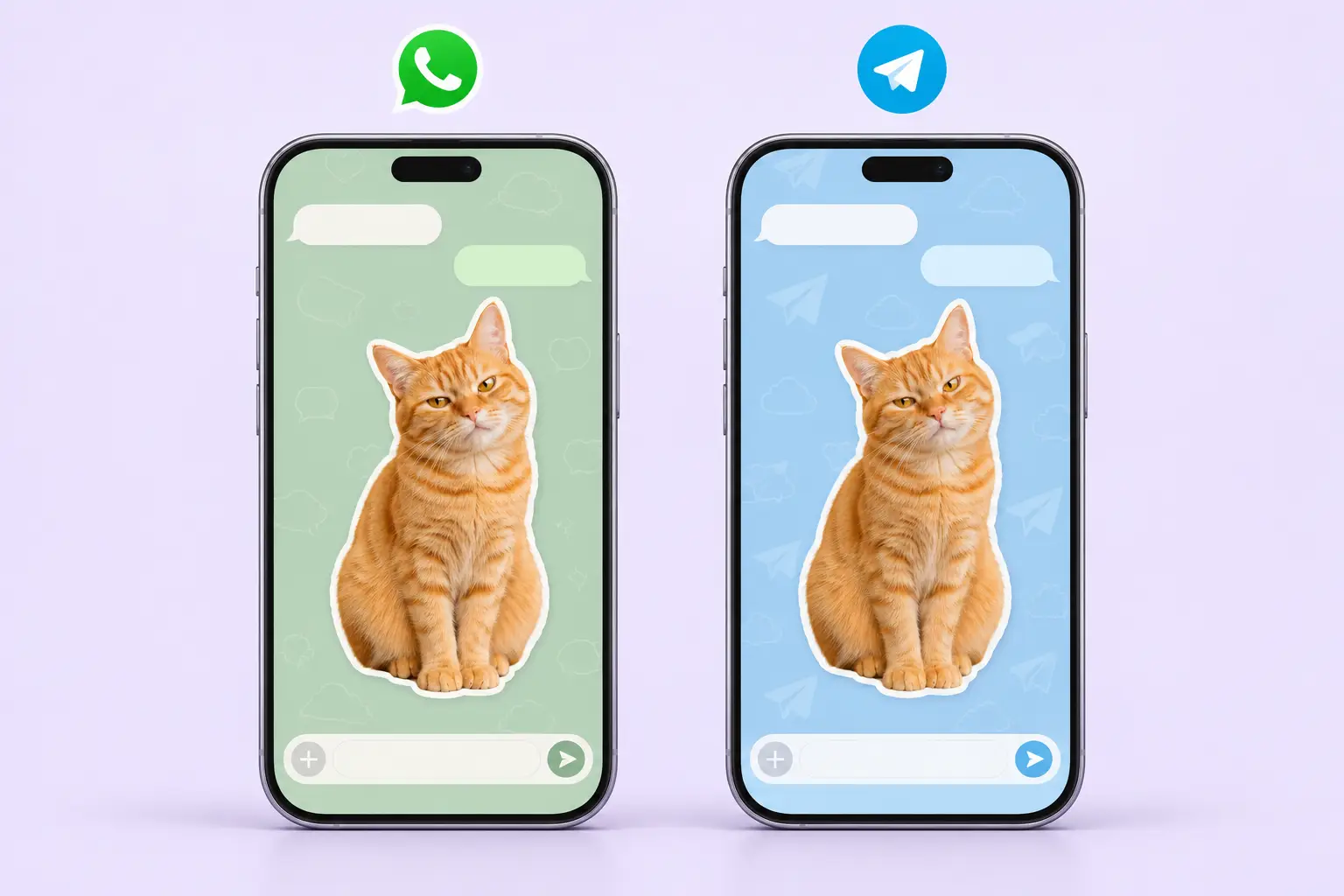
Once you have created a transparent PNG using Betatum, you can turn it into a messaging sticker using the built-in sticker editor in WhatsApp or Telegram. Both apps allow you to send individual stickers or organize them into custom sticker packs without installing a separate sticker-making app.
Add Your Sticker to WhatsApp
To make WhatsApp stickers from photos, save your finished transparent PNG to your phone and follow these steps:
Open any conversation on WhatsApp.
Open the sticker panel near the message field.
Tap Create and access your photo gallery.
Select your transparent PNG.
Choose the preview that best preserves your original design and check the sticker's appearance.
Tap Send to share your sticker.
Your newly created sticker is automatically saved in the sticker tray for future use.
To create a shareable sticker pack, press and hold a sticker in the sticker tray, select Add to sticker pack, and tap New. Name your pack and add more stickers as needed. You can then share the entire collection directly in a conversation.
There is no need to manually resize or convert your PNG when using WhatsApp's built-in sticker creator.
Add Your Sticker to Telegram
Telegram's built-in Sticker Editor allows you to make Telegram stickers from photos without using a third-party app or bot.
Open a conversation in Telegram.
Access the sticker panel from the message field.
Tap the + button to open the Sticker Editor.
Select your transparent PNG from your device.
Review the sticker and make additional adjustments only if necessary.
Send the finished sticker directly to the conversation.
To create a reusable sticker pack, choose the option to create a new sticker set and assign a relevant emoji to your sticker. You can add more stickers to the collection and share the entire set through its unique Telegram link.
Manual resizing or format conversion is generally unnecessary when using Telegram's built-in Sticker Editor.
Fix Common Transparent Sticker Problems
Even a sticker that looks good in the editor may display incorrectly after saving or importing it into a messaging app. Use the following table to identify and fix common issues.
Problem | How to Fix It |
|---|---|
A white box appears around the sticker | Check whether the saved PNG contains actual transparency rather than a solid white background. |
Important subject details are missing | Return to the original photo and refine the cutout to preserve missing details. |
The sticker border is clipped | Increase the transparent canvas space around the design. |
The sticker appears too small in chat | Trim excessive transparent space around the subject while keeping a small margin. |
The messaging app rejects the file | Check the app's current import requirements for supported file formats, dimensions, and file size. |
Always preview your finished sticker at a small size and against both light and dark backgrounds to catch issues before sharing it.
Conclusion
Making a custom sticker from a photo is simple when you start with a clear image and preserve its important details. Remove the background, personalize the cutout with an optional border or text, and save it as a transparent PNG. Add your sticker using WhatsApp or Telegram's built-in sticker creator, and check how it looks in chat. Ready to create your own stickers? Start with Betatum's AI Background Removal tool.