
How to Swap Faces in Multiple Photos at Once With AI
By Maria · 2026-11-14
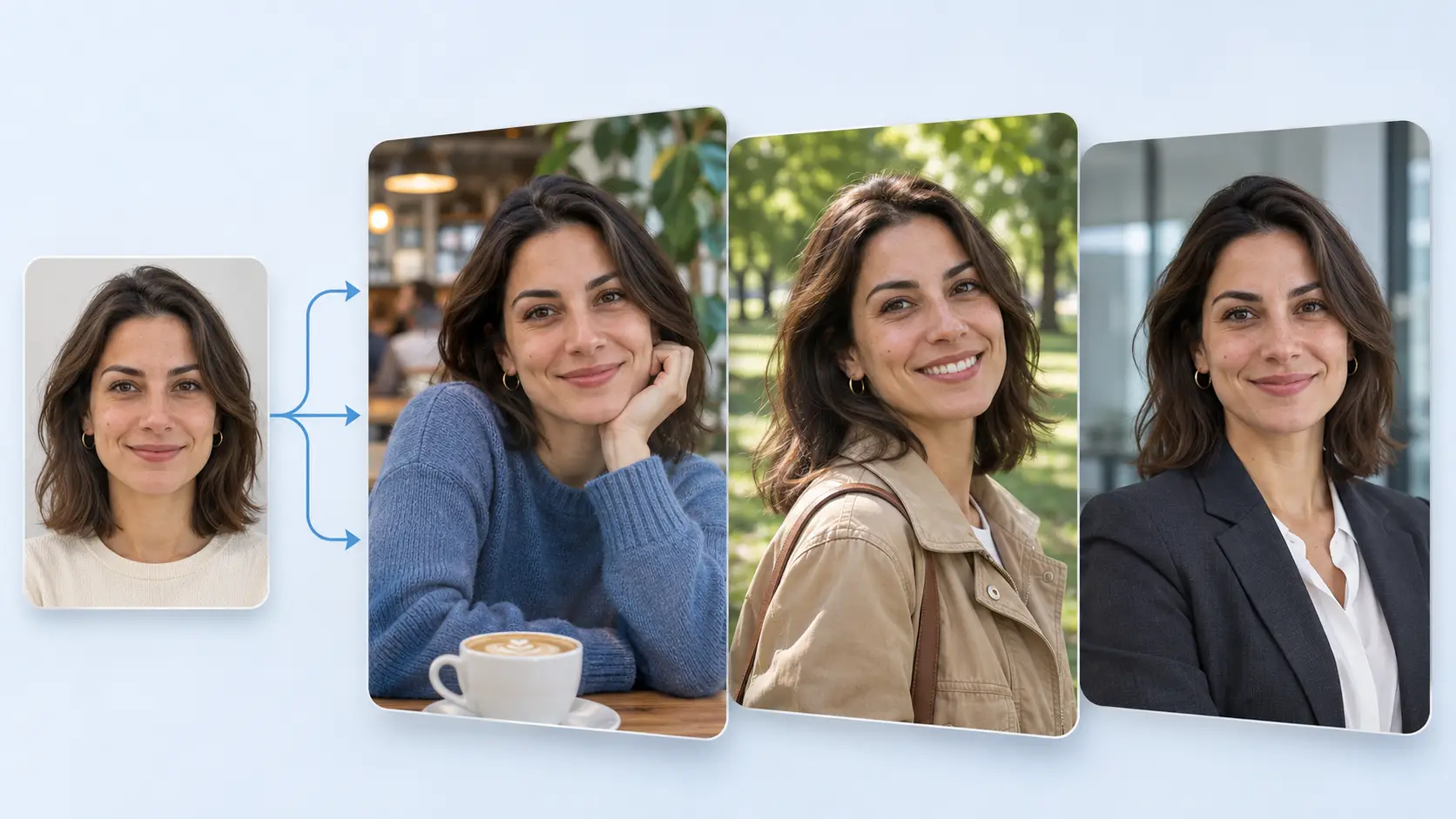
Learn how to swap faces in multiple photos at once with AI. Use one face across several pictures, review results, and download your batch with Betatum
Want to put the same face into several photos without uploading and editing each image separately? A batch face swap tool lets you use one replacement face across multiple target photos in a single workflow. Instead of repeating the process for every picture, you can upload your images together and generate the results in a batch. This guide explains how batch face swapping works, how to prepare your photos, and how to review the final results.
SUMMARY
Want to replace the same face in several photos without editing each image separately? This guide explains how AI batch face swapping works, how to prepare your images, and how to get better results.
Bulk vs. Multi-Face Swap: Understand the difference between replacing faces across separate photos and editing multiple faces in one image.
Prepare Your Photos: Learn how to choose a clear source face and suitable target images.
Batch Face Swap With Betatum: Follow four steps to upload photos, apply one replacement face, review results, and download your images.
Multiple Photos or Multiple Faces? Choose the Right Tool
Batch face swapping and multi-face swapping may sound similar, but they serve different purposes. Batch or bulk face swap lets you apply the same replacement face across several separate photos. For example, you can use one selfie to replace a face in ten different portraits without processing each photo individually.
Multi-face swap , on the other hand, focuses on selecting and replacing faces within a single image containing multiple people. For example, you might want to change one person's face in a group photo while keeping everyone else unchanged.
Here's how to choose the right workflow:
What You Want to Do | Suitable Workflow |
|---|---|
Put your face into several separate portraits | Bulk Face Swap |
Choose a person to replace in one group photo | Multi-Face Swap |
Change a face in one photo | Single Photo Face Swap |
Keep in mind that a tool supporting bulk face swapping doesn't necessarily support multi-face editing, or vice versa. Check the available features before uploading your photos.
Prepare One Source Face and Your Target Photos
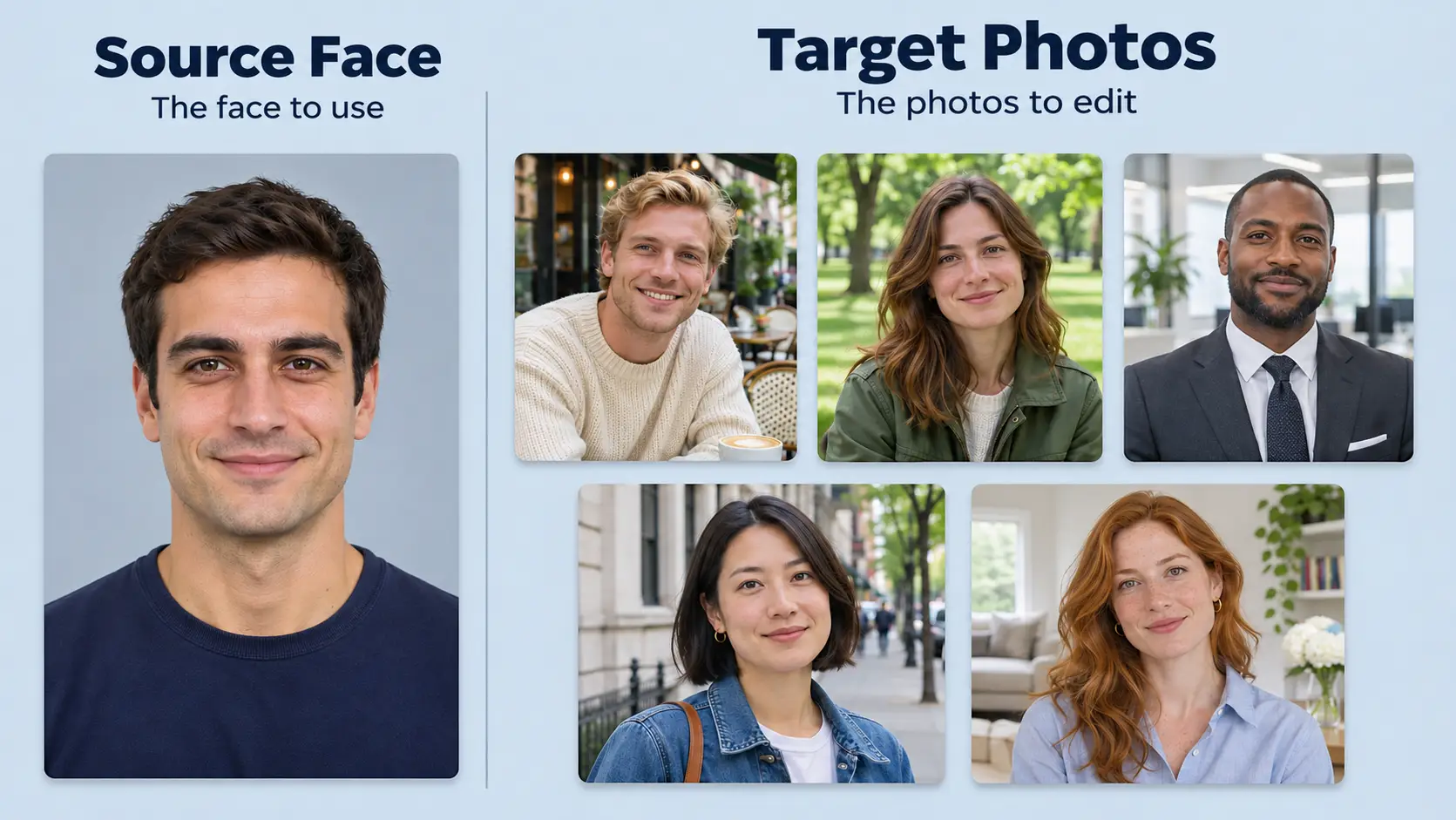
Before starting a batch face swap, prepare one source photo and the target images you want to edit. The source photo provides the replacement face, while the target photos contain the scenes where that face will appear.
For example, your portrait can serve as the source, while five different photos of people in various settings become the targets. The AI uses your face as the replacement identity while aiming to preserve each target photo's pose, expression, and background.
For better results, follow this short checklist:
Choose a clear source photo: Use an image with one visible face, good lighting, and no obstructions such as sunglasses or hair covering facial features.
Check your target photos: Make sure the faces you want to replace are visible and have enough detail for the AI to process.
Keep the original files: Save untouched copies so you can compare the results or try again if needed.
Use photos you have permission to edit: Make sure you have the necessary rights and consent before replacing someone's face.
How to Swap Faces in Multiple Photos With Betatum
Want to replace faces in multiple photos without repeating the same steps for every image? Betatum AI Bulk Face Swap lets you apply one replacement face across a batch of photos.
For this example, we'll use one portrait of yourself and three target photos: a casual portrait, an outdoor shot, and a professional headshot. Make sure you have permission to edit all the images.
Step 1: Open AI Bulk Face Swap
Visit Betatum's AI Bulk Face Swap page and open the tool. Bulk processing is available on the Pro plan, so make sure your account has access before starting.
Step 2: Add the Photos You Want to Change
Upload the three target photos you prepared. These are the images where you want the replacement face to appear.
For example, you might choose a photo taken at a café, another outdoors, and a third in an office. Adding them as a batch means you won't need to repeat the upload process for each face swap.
Step 3: Select the Face to Use Across the Batch
Next, choose your source portrait. This is the face Betatum will use across all three target photos.
The AI processes the batch using the same replacement identity while aiming to preserve each target photo's original pose, expression, and background. Once both inputs are ready, submit the batch for processing.
Step 4: Review Each Result and Download the Batch
After processing, check the results individually. Look closely at facial likeness, skin tone, lighting, and the edges around the swapped faces. A result that looks natural in one photo may need improvement in another.
Download the finished batch and open the saved images to confirm that each face swap looks right. If one result appears distorted or unnatural, try replacing that target photo with a clearer image.
Conclusion
Swapping the same face into multiple photos doesn't have to mean editing every image separately. With a batch face swap ai , you can apply one replacement face across several target photos in a single workflow. For better results, start with clear images and review each output for natural-looking facial details. Always use photos you have permission to edit. Ready to simplify the process? Try Betatum AI Bulk Face Swap for your next batch.